How to play
How to Play Mimic Party Online with Friends
Create a room, invite your friends, and make some noise. A step-by-step guide to your first four-round online party.
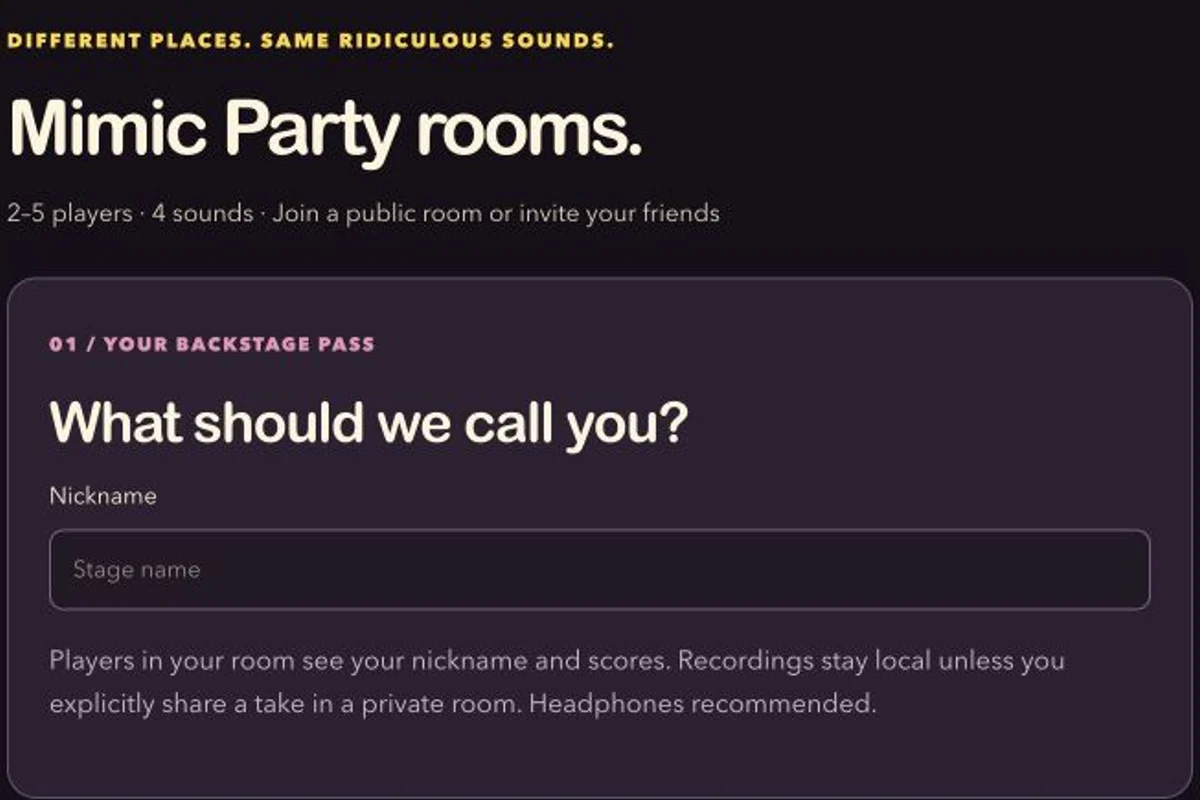
Here is how to play Mimic Party online: open https://mimicparty.me/online, choose a nickname, and join a public room or create a private one. Gather 2–5 players, let everyone tap “I’m ready,” and have the host start the four-round party. Listen, mimic each sound on your own device, and compare a total out of 400.
What you need before you play
Each player needs their own device, a browser, an internet connection, and a working microphone. Headphones are recommended: they help keep the reference sound out of your recording. Open the game in a normal browser, allow microphone access when you decide to record, and keep the tab visible during your turn.
Mimic Party is free to play in the browser, with no download or account required. You enter a nickname for the room. Start from https://mimicparty.me or go directly to the online multiplayer lobby.
If this is your first time using the microphone, visit solo play and try the optional practice sound first. Online rounds give you one completed take per sound, so a quick setup check is useful before the host starts.
1. Join a public room or create a private party
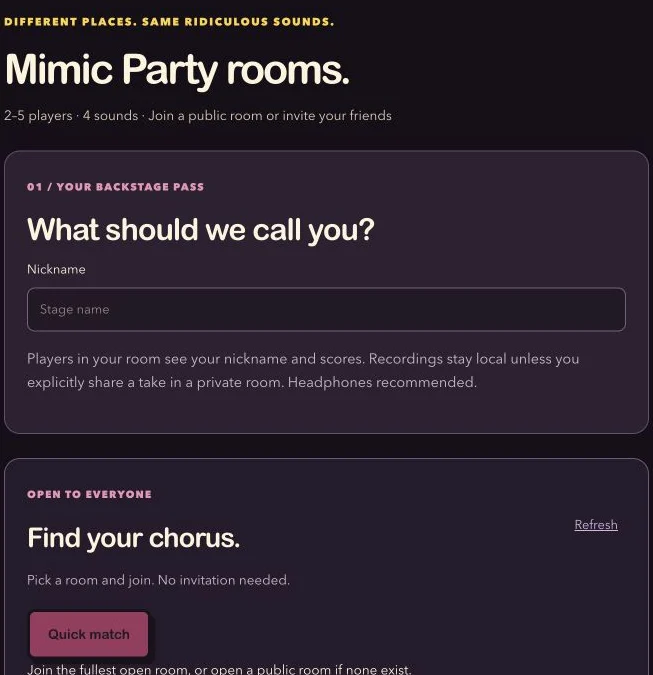
At https://mimicparty.me/online, choose a family-friendly nickname. The lobby offers two different starting points: finding a public group or creating your own room.
| Room | How players join | Voice replays |
|---|---|---|
| Public | Discover a waiting room in the lobby; no invitation needed. | Scores only. No shared voice takes. |
| Private | Use the invitation link or room code. | Optional temporary sharing after a round, with each player’s explicit choice. |
To play with friends, create a room and explicitly select Private · invitation only. New rooms default to public, so check this setting before creating yours. A private room is hidden from public discovery; people need its invitation or code to join.
If you would like to meet other players, pick an available public room or use Quick match. Waiting rooms can fill or start while you are looking at the list. If a join no longer works, refresh the lobby and choose another available room.
2. Send the invitation and gather 2–5 players
Inside your room, use Copy invitation and send the link to the friends you want to invite. They can open it on their own devices and enter a nickname. A room code is also available for joining through the online page.
Keep private invitations within your group. The link is an entry route to the room, so someone who receives it may be able to join while there is space. The game supports a minimum of two players and a maximum of five.
Wait until everyone you want in the party has joined. Rooms expire two hours after creation, so create one when your group is ready to play. If an old invitation no longer works, return to the lobby and make a fresh room.
3. Let everyone get ready, then start
Before starting, each player’s browser checks the room’s four reference sounds. Wait for that check to finish, then each person taps I’m ready. If sound preparation fails, use the sound-check retry option before trying again.
The host can select Start 4-round party once at least two players are present and everyone in the room is ready. If the button is unavailable, check the player list for someone who has not tapped Ready yet.
Ready status tells the room that a player is prepared; it does not prove they are still looking at the tab. Ask your group to stay on the game screen while the host starts. Each player still starts their own microphone take on their own device.
4. Listen and mimic: how to play each round
Everyone in an online room receives the same four-sound deck. For each round, listen to the reference and notice its opening, pauses, rhythm, and ending. Start your take with the on-screen microphone control, follow the countdown, and copy the sound in your own voice.
- Hear the reference. Follow the yellow track from left to right. It shows loudness over time and helps you remember the sound’s timing.
- Wait for your count-in. Begin when the game asks for your voice. The recording lasts 4.5 seconds; you do not need to fill every moment if the reference has pauses.
- Finish one take. Your browser calculates the score and submits the numeric result to the room. A completed online take is locked for that sound.
- Keep the tab open. Wait for the other players or the round deadline, then move on together.
Each round has a 120-second deadline. Silence or a missed deadline scores zero. This differs from solo and same-device play, where unclear recordings can offer retry or skip options. If you need a microphone check, do it before the online party begins.
For the basic listening and recording loop, see the Mimic Party rules and scoring guide. For an introduction with more screenshots, read Meet Mimic Party.
5. Compare scores and move to the next sound
After everyone has submitted, or the deadline has passed, the room shows the round standings. Anyone can advance the room with the next-sound control; the host does not have to handle every transition.
There are four rounds, each worth up to 100 points, for a final total out of 400. For example, round scores of 70, 80, 65, and 85 produce 300 points. Players with equal totals can share a rank.
The similarity score compares relative melody, rhythm, attacks, and sound shape. Your natural vocal register and voice identity are not graded. Matching the reference’s pauses and pace is more useful than simply trying to be loud.
At the end, you may optionally publish your own result to the multiplayer community board. That is separate from finishing the room. These are casual browser-scored rankings, so treat them as friendly feedback and enjoy the performances along the way.
Can you hear your friends’ voices?
There is no live voice chat in Mimic Party. Public rooms share numeric results without voice recordings. In a private room, players may explicitly share a short take after a round so other room members can choose to listen.
Private replay sharing is optional. Nothing uploads or plays automatically, and each shared take is limited to eight seconds. A shared recording becomes unavailable after five minutes, a round change, leaving, or removal, and it may disappear sooner.
You can remove your own take, mute replays, or hide unwanted audio for the room. Share only with people you trust: listeners could record what they hear. The privacy page explains the difference between local scoring, numeric results, and temporary private replays.
How to play: common multiplayer questions
Can we play on one device?
Yes. Choose https://mimicparty.me/party for Pass the Mic. It supports 2–5 players taking turns through four sounds. Online rooms are the option for friends using separate devices.
Why can’t the host start?
Check that the room contains at least two players, that the sound checks have finished, and that everyone has tapped I’m ready. A player who has not completed preparation can hold up the start.
Why is my microphone silent or blocked?
Check site microphone permission and your input device, close other apps using the microphone, and return to the game tab. On a phone, try opening the link in the normal browser instead of an embedded app browser. Use microphone help or the FAQ before starting a new room.
Can I retry an online take?
Each completed online take is locked for that round. Practice in solo mode first if you want to experiment with microphone position or timing. A silent take or missed deadline counts as zero.
Do my recordings upload when I join?
Joining, normal scoring, and public-room play do not upload your voice. A private-room replay uploads only after you explicitly choose to share that take. Publishing a leaderboard result shares your nickname and numeric result.
Start your first online party
Open https://mimicparty.me/online, choose a nickname, and create a private room for your group. Send the invitation, wait for everyone to finish their sound check and tap Ready, then start the four rounds. Listen for the pattern, take your turn, and compare the room’s results.
You can return to the full website at https://mimicparty.me, warm up in https://mimicparty.me/play, or read the general How to Play guide whenever you need a reminder. Two friends, two browsers, and a few ridiculous sounds are enough to get started.
Mimic Party at mimicparty.me is an independent browser game, unaffiliated with FoliesAPP, Valve, or the Steam game of the same name.
Keep the party going.

The game
Meet Mimic Party: A Free Browser Voice Game
Silly sounds, quick challenges, and a stage for everyone. Find your favorite way to play our free browser voice game.